StratoSort Core User Guide
This guide explains how to use StratoSort Core day-to-day, including Smart Folders, Knowledge OS, and key settings.
For installation help, use Install Guide. For beta testing and bug reporting, use Beta Tester Guide.
1) What StratoSort Does
StratoSort uses local AI to:
- Analyze your files by content (not just filename)
- Suggest where files belong
- Rename files using your naming rules
- Help you search by meaning using Knowledge OS
- Visualize relationships in the Knowledge Graph
Everything runs locally after model download.
2) Typical Workflow
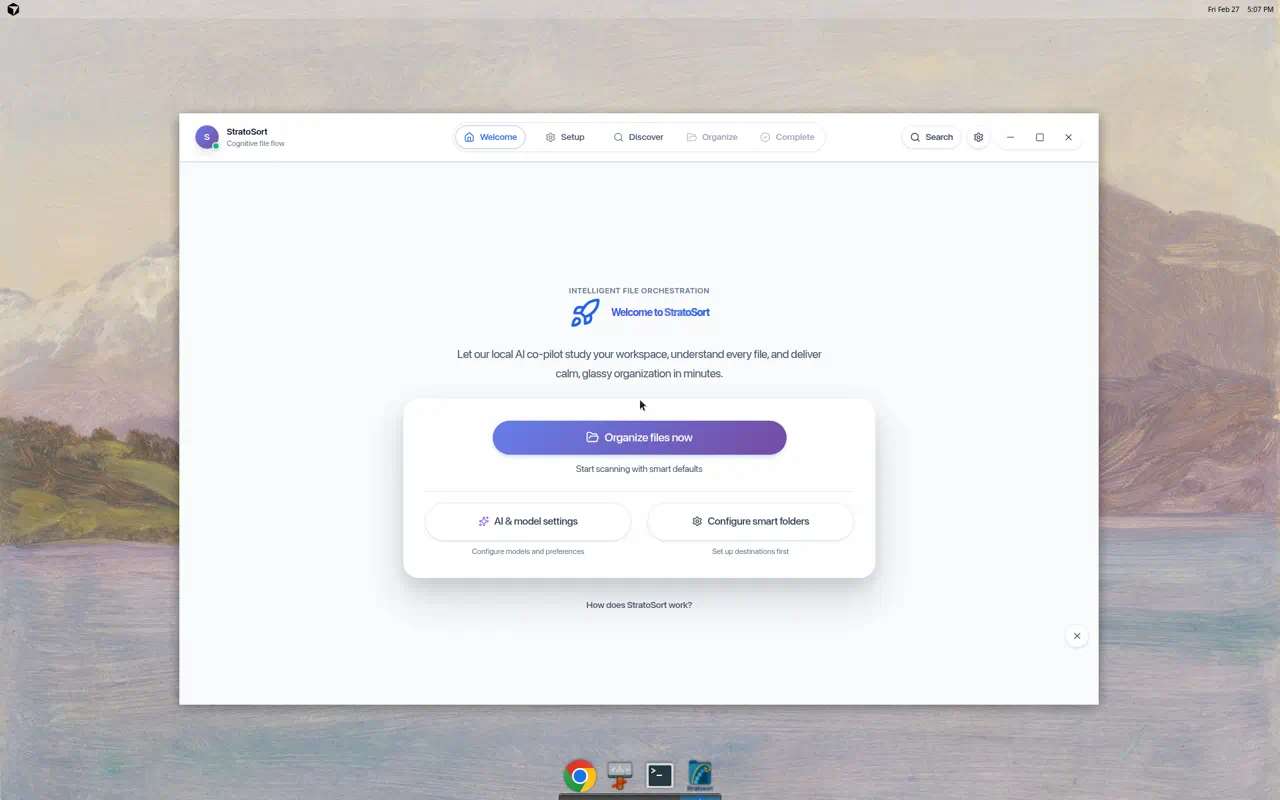
StratoSort is organized into five phases. You move through them in order:
- Welcome — Start screen. Choose your flow.
- Setup — Create Smart Folders (the destination folders the AI routes files into). Give each folder a plain-language description so the AI knows what belongs there.
- Discover — Drag and drop files, or use the Select/Scan Folder buttons to browse. The AI analyzes content, extracts meaning, and generates organization suggestions.
- Organize — Review each suggestion. Accept, reject, or edit the destination and filename. Use Undo/Redo if you change your mind.
- Complete — See a summary of everything that was organized. Undo is still available here.
3) Smart Folders (Most Important First Setup)
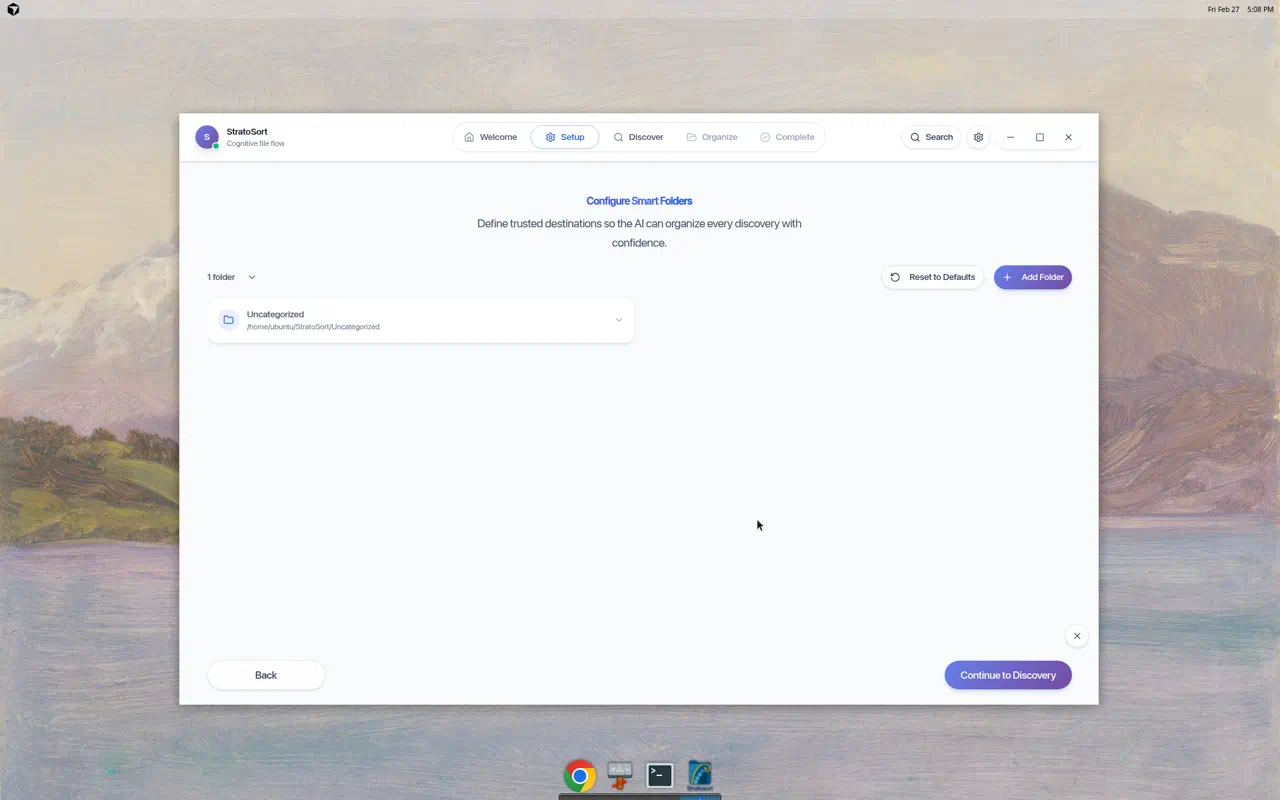
Smart Folders are destination folders that the AI routes files into. Each Smart Folder has a description that tells the AI what kind of files belong there. The AI compares your file’s content against these descriptions to decide where it fits best.
Best practices
- Create folders around real outcomes (for example:
Invoices,Receipts,Screenshots,Contracts). - Write descriptions in plain language — pretend you’re telling a coworker what goes in each folder.
- Be specific. “Monthly bills and vendor invoices” works better than “financial stuff.”
- The app creates a single “Uncategorized” fallback folder by default on the first launch.
- You must proactively create your own specific smart folders to instruct the AI where to sort files.
- Start with 3-5 clear folders before adding more. Overlapping descriptions confuse the AI.
Good folder description examples
| Folder | Description |
|---|---|
| Invoices | “Bills from vendors and monthly service invoices.” |
| Tax Documents | “W-2, 1099, tax forms, receipts needed for filing.” |
| Project Specs | “Requirements, architecture docs, and project briefs.” |
| Screenshots | “Screen captures, app screenshots, and UI mockups.” |
4) Naming Conventions
Open Settings -> Default Locations -> File naming defaults.
You can control:
- Convention
subject-datedate-subjectproject-subject-datecategory-subjectkeep-original
- Date Format
YYYY-MM-DDMM-DD-YYYYDD-MM-YYYYYYYYMMDD
- Case
kebab-case,snake_case,camelCase,PascalCase,lowercase,UPPERCASE
- Separator
- Use safe separators like
-or_
- Use safe separators like
Tip: If you need maximum compatibility across apps and systems, prefer kebab-case plus
YYYY-MM-DD.
5) Knowledge OS Search and Knowledge Graph
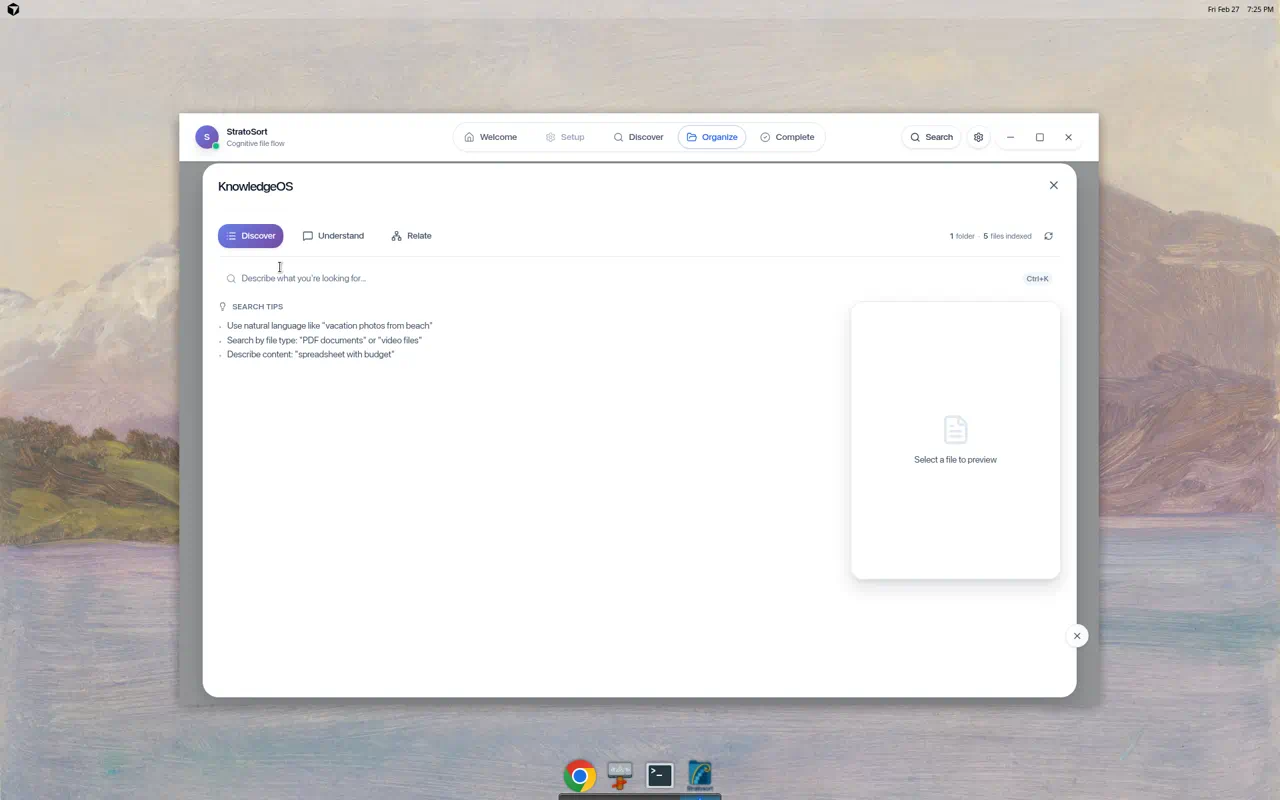
Open search with Ctrl+K (Windows/Linux) or Cmd+K (macOS) — or click the Knowledge OS button in the Discover phase — and use natural language queries like:
- “Show invoices from last quarter”
- “Find screenshots related to onboarding”
- “Documents about pricing changes”
Knowledge OS tips
- Be specific in your query (topic + time period + file type).
- If results are weak, rephrase with clearer intent.
- If semantic results seem empty, check embedding/model health in Settings.
Knowledge Graph tips
- Use graph view to inspect relationships between files.
- Great for finding clusters, duplicates, and concept neighborhoods.
- Use it as an exploration tool, then open/reveal files directly.
6) Settings Walkthrough
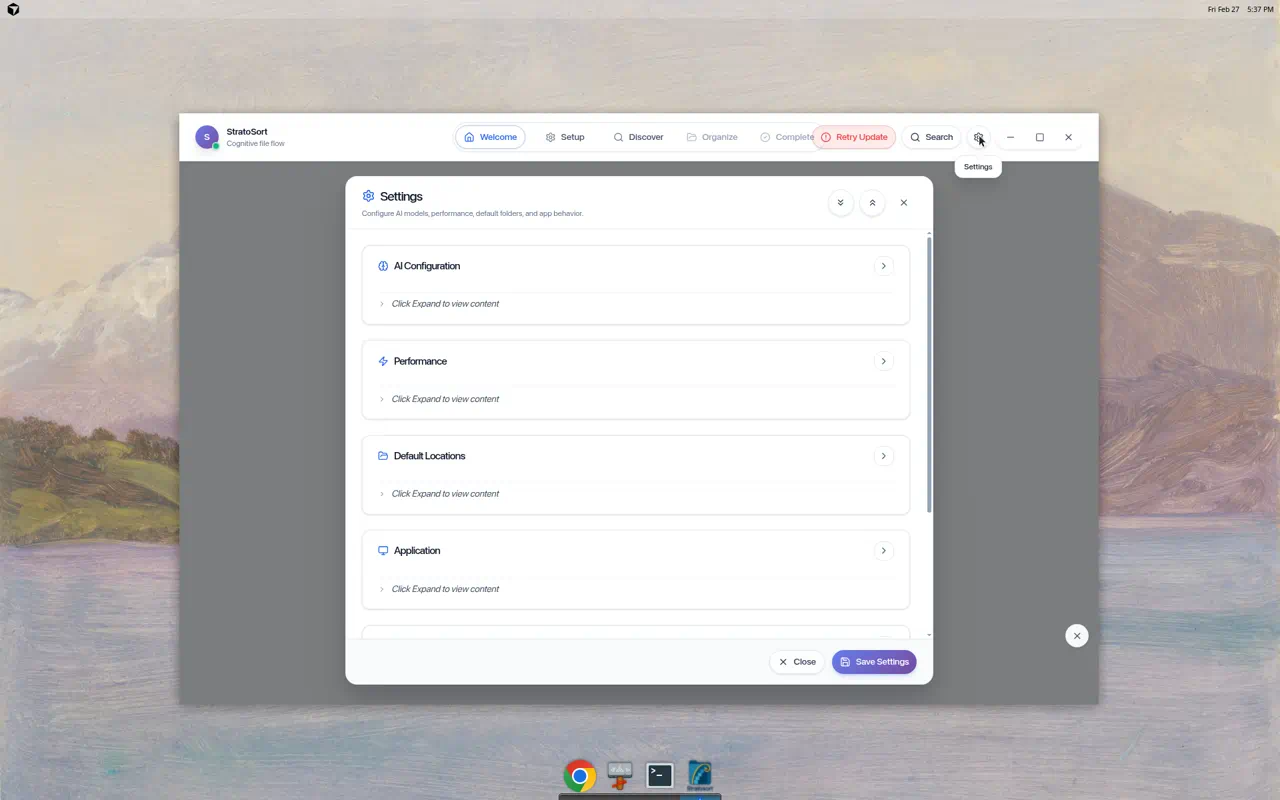
Open Settings and focus on these sections:
AI Configuration
- Local AI Engine: Check model and GPU status.
- Default AI models: Set text, vision, and embedding models.
- Model Management: Download base models or add individual models from the registry.
- Embedding behavior / rebuild: Rebuild index when embedding model changes.
- Chat Persona: Customize how the AI assistant responds.
Performance
- Auto-organize: Enable automatic routing from downloads.
- Background Mode: Configure background processing behavior.
- Graph Retrieval: Tune graph expansion and contextual chunk settings.
Default Locations
- Set where Smart Folders are created by default.
- Configure file naming defaults (convention, date format, case, separator).
Application
- Launch on Startup toggle.
- Notification behavior.
- Troubleshooting Logs (Open Folder, Export Logs).
- Settings backup/restore (create, export, import).
Analysis History
- View past analysis results and statistics.
7) AI Model Profiles
On first launch, the setup wizard offers two profiles:
| Profile | Text Model | Vision Model | Embedding Model | Best For |
|---|---|---|---|---|
| Base (Small & Fast) | Llama 3.2 3B | LLaVA Phi-3 Mini | all-MiniLM-L6-v2 | All computers, CPU-only, low memory |
| Better Quality | Qwen2.5 7B | LLaVA 1.6 Mistral 7B | nomic-embed-text v1.5 | Modern hardware, 16GB+ RAM, GPU |
You can switch models later in Settings -> AI Configuration -> Default AI Models.
Changing the embedding model requires an index rebuild. The app prompts you when this is needed.
8) Recommended Starter Configuration
If you want a safe default profile:
- Start with the Base (Small & Fast) model profile
- Enable Auto-organize
- Keep confidence around 75-85%
- Use naming convention
subject-date - Use date format
YYYY-MM-DD - Keep separators simple (
-)
Then run a small batch first and review outcomes before scaling up.
9) Daily Usage Pattern
- Collect files in your intake location (for example your Downloads folder).
- Open StratoSort and go to the Discover phase. Drag files in or select a folder.
- Review the AI’s suggested destinations and names.
- Move to Organize and approve, edit, or reject each suggestion.
- After organizing, use Knowledge OS (Ctrl+K / Cmd+K) to search and verify file placement.
- Use Undo/Redo any time in the Organize or Complete phase if something doesn’t look right.
10) Troubleshooting Quick Fixes
Search is weak or empty
- Check Settings -> AI Configuration for model status.
- Confirm embeddings exist and rebuild if needed.
- Retry with a more specific query.
Auto-organize feels too risky
- Increase confidence threshold.
- Keep Smart Folders tightly defined.
- Start with manual review before fully trusting automation.
File names are not what you expect
- Review naming defaults in Settings -> Default Locations.
- Confirm convention/date/case/separator values.
Need to see logs
- Open Settings -> Application -> Troubleshooting Logs.
- Use Open Folder to browse logs or Export Logs to create a shareable file.
11) Reporting Problems
Use the beta guide for full reporting instructions: Beta Tester Guide
Direct bug form: Open a bug report